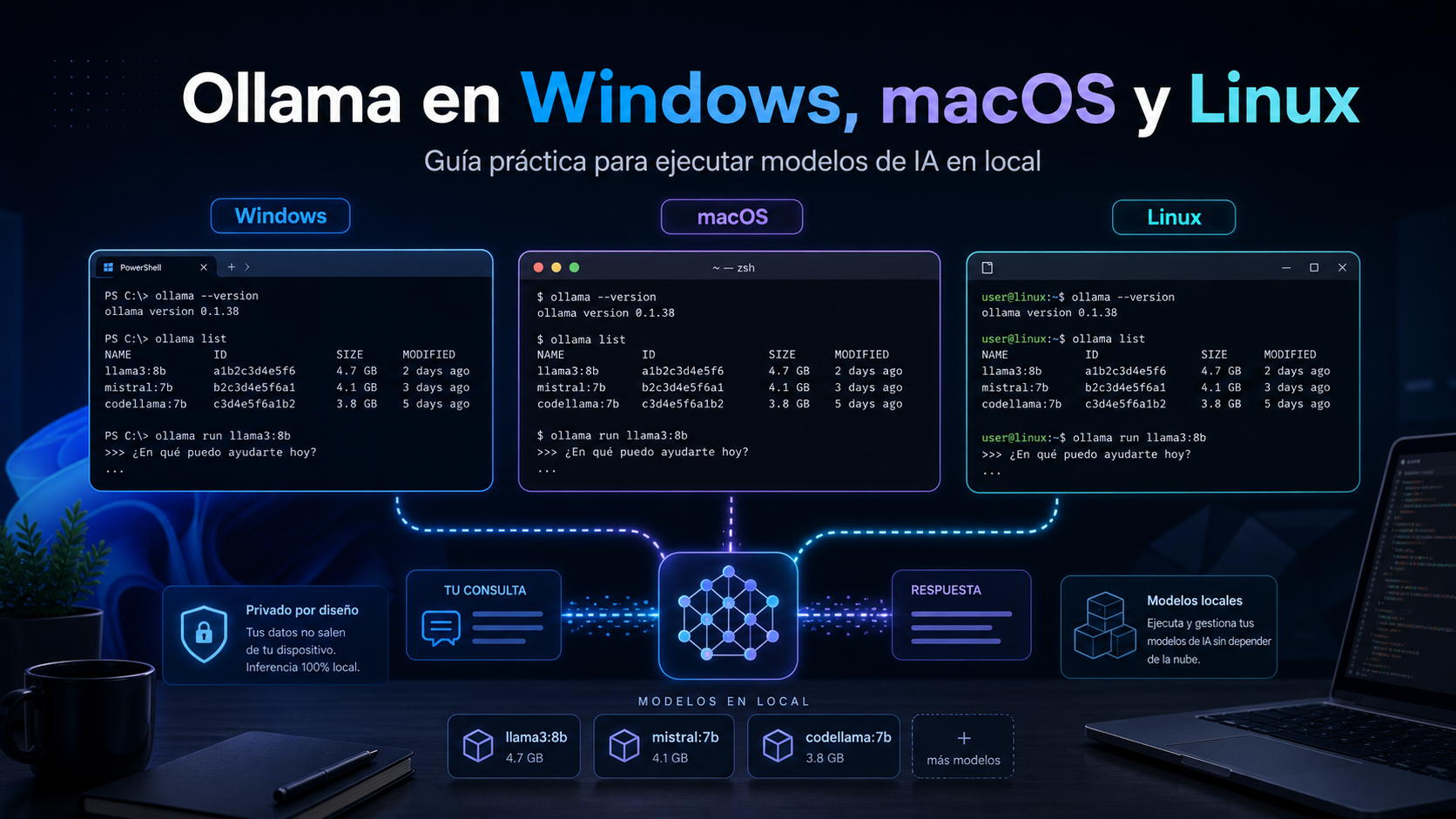
Welcome to the module dedicated to Ollama.
Until now, many artificial intelligence projects are built by consuming cloud model APIs, such as OpenAI, Anthropic, Google, or other providers. That approach is very powerful, but it is not the only one.
In this tutorial we will work with another scenario: running language models directly on our own computer.
This matters for several reasons:
- Local privacy: if models are downloaded and executed locally, prompts and responses do not need to leave the machine.
- Inference cost: there is no per-token cost when running local models, although there are indirect costs in hardware, energy, and storage.
- Technical learning: understanding how models are downloaded, loaded, executed, and exposed helps you better understand real AI systems.
- Fast prototyping: it lets you experiment without always depending on an external API.
- Integration: Ollama exposes a local HTTP API that can be consumed from Python, Node.js, .NET, web applications, RAG tools, and agents.
The tutorial is designed for mixed teams: Windows, macOS, and Linux. We will first cover the common concepts and then the specific differences for each operating system.
Table of contents
- What is Ollama
- When to use local models
- System requirements
- Installation by operating system
- Verifying the installation
- How to restart Ollama
- First local model
- Essential CLI commands
- Where models are stored
- Environment variables by operating system
- Ollama REST API
- Python integration
- Embeddings for RAG
- How to know if it is using CPU or GPU
- Context length
- OpenAI API compatibility
- Best practices
- Common errors by operating system
- Proposed exercises
- Closing
1. What is Ollama
Ollama is a tool that lets you download, manage, and run language models locally.
A simple way to understand it is to think of Ollama as a runtime environment for AI models. The user requests a model by name, Ollama downloads it if not available, loads it into memory, and lets you use it from:
- the command line;
- a local HTTP API;
- libraries such as Python or JavaScript;
- integrations compatible with OpenAI-style APIs.
By default, the local Ollama server is available at:
http://localhost:11434And its API base is available at:
http://localhost:11434/apiMain components
| Component | Description |
|---|---|
| Ollama server | Process that runs models and serves local requests. |
ollama CLI | Command to download, run, list, and manage models. |
| REST API | Local HTTP API to integrate models into applications. |
| Models | Files downloaded locally that contain the model weights. |
2. When to use local models
Ollama is especially useful when you want to:
- learn how models work locally;
- test prompts at no per-token cost;
- build private prototypes;
- run RAG tests on a development machine;
- run models without a permanent internet connection;
- integrate AI into internal tools;
- compare smaller models before using more powerful cloud models.
Quick comparison
| Aspect | Local Ollama | Cloud APIs |
|---|---|---|
| Privacy | High if the model runs locally | Depends on the provider |
| Per-token cost | No direct per-token cost | Pay per use |
| Maximum quality | Limited by hardware and local model | Access to frontier models |
| Speed | Depends on local CPU/GPU | Depends on network and provider |
| Offline | Yes, after downloading the model | No |
| Maintenance | User’s responsibility | Provider’s responsibility |
Practical rule: use Ollama for learning, prototyping, and building local solutions; use cloud APIs when you need maximum quality, managed scalability, or frontier models.
3. System requirements
The requirements depend on the model you want to run.
General requirements
- 8 GB of RAM as a minimum for small models.
- 16 GB of RAM or more to work comfortably.
- SSD recommended.
- Enough free space: models can take from a few GB up to tens or hundreds of GB.
- GPU recommended for better performance, although many small models can run on CPU.
Windows
Typical requirements:
- Windows 10 22H2 or newer, or Windows 11.
- Up-to-date NVIDIA drivers if using an NVIDIA GPU.
- Up-to-date AMD Radeon driver if using an AMD Radeon GPU.
macOS
Typical requirements:
- macOS Sonoma 14 or newer.
- Apple Silicon M-series with CPU/GPU support.
- On Intel/x86 Macs, expect CPU execution.
Linux
Typical requirements:
- A modern Linux distribution.
systemdif you plan to run Ollama as a service, as in the standard installation.- NVIDIA or AMD/ROCm drivers properly installed if you want to use the GPU.
- Permissions to install system services or binaries.
Practical model size rule
An approximate rule for models quantized to 4 bits:
Model with N B parameters, where B means billion, ≈ N × 0.6 GB of RAM/VRAMIn this context, 7B means approximately 7 billion parameters.
Approximate examples:
| Model | Approximate memory | Comment |
|---|---|---|
| 3B | 2 to 3 GB | Good for modest machines |
| 7B / 8B | 4 to 6 GB | Good entry point |
| 13B / 14B | 8 to 10 GB | Requires more memory |
| 32B | 18 to 24 GB | Recommended on a large GPU or with plenty of RAM |
| 70B | 40 GB or more | Advanced use |
These figures are indicative. Actual consumption depends on quantization, context, GPU, offloading, and model configuration.
4. Installation by operating system
4.1 Windows
Option A: graphical installer
- Go to the official Ollama download page.
- Download
OllamaSetup.exe. - Run the installer.
- Open a new PowerShell or CMD terminal.
- Verify:
ollama --versionOn Windows, Ollama keeps running in the background and the ollama command becomes available in PowerShell, CMD, or your preferred terminal.
Option B: winget
If you use winget, you can install with:
winget install Ollama.OllamaVerify that the server responds
curl.exe http://localhost:11434The expected response is similar to:
Ollama is runningOn classic Windows PowerShell,
curlmay behave differently because it can resolve to an alias. To avoid issues, usecurl.exeorInvoke-WebRequest.
4.2 macOS
Recommended option: official application
- Download the
.dmgfile from the official Ollama page. - Mount the
.dmg. - Drag
Ollama.apptoApplications. - Open Ollama.
- If the application asks for permission to install the
ollamacommand on the PATH, accept.
Verify from Terminal:
ollama --versionVerify that the server responds:
curl http://localhost:11434Alternative with Homebrew
In some development environments Homebrew may be preferred:
brew install --cask ollama-appThen open the Ollama application and verify:
ollama --version4.3 Linux
Installation with the official script
curl -fsSL https://ollama.com/install.sh | shThen start and verify the service:
sudo systemctl start ollama
sudo systemctl status ollama
Verify the API:
curl http://localhost:11434Expected response:
Ollama is runningSecurity note
In corporate or production environments, it is good practice to review any remote script before executing it.
An alternative is to download it, inspect it, and then run it:
curl -fsSL https://ollama.com/install.sh -o install-ollama.sh
less install-ollama.sh
sh install-ollama.sh
5. Verifying the installation
The basic commands are the same on the three systems.
Windows
ollama --version
curl.exe http://localhost:11434
macOS
ollama --version
curl http://localhost:11434
Linux
ollama --version
curl http://localhost:11434
sudo systemctl status ollama
If everything is correct, ollama --version will display the installed version and curl http://localhost:11434 will respond that Ollama is running.
6. How to restart Ollama
In several parts of this tutorial we will say “restart Ollama”. It is worth clarifying what that means on each operating system.
Windows
- Find the Ollama icon in the system tray.
- Right-click it.
- Choose Quit.
- Reopen Ollama from the Start menu.
Then verify:
curl.exe http://localhost:11434macOS
- Click the Ollama icon in the menu bar.
- Choose Quit Ollama.
- Reopen
Ollama.appfromApplications.
Then verify:
curl http://localhost:11434Linux
If Ollama was installed as a systemd service:
sudo systemctl restart ollama
sudo systemctl status ollama
To review logs after the restart:
journalctl -e -u ollama7. First local model
We will run a lightweight model to get started.
ollama run llama3.2The first time, Ollama will download the model. Then it will open an interactive session:
>>> Send a message (/? for help)Try:
Explain in one sentence what supervised learning is.To exit:
/byeOr also:
Ctrl+DWhat happened behind the scenes
When we run:
ollama run llama3.2Ollama does the following:
- It checks whether the model is already downloaded.
- If it is not downloaded, it pulls it from the model registry.
- It loads the model into RAM or VRAM.
- It opens an interactive session.
- It keeps the model in memory for some time to avoid reloading it on every query.
By default, Ollama keeps the model loaded for 5 minutes after the last use. This explains why RAM or VRAM does not always drop immediately when a query finishes.
To free memory manually:
ollama stop llama3.2It can also be controlled with OLLAMA_KEEP_ALIVE or with the keep_alive parameter in the API.
8. Essential CLI commands
These commands work the same on Windows, macOS, and Linux.
# List downloaded models
ollama list

# Download a model without running it
ollama pull llama3.2

# Run a model
ollama run llama3.2

# View models currently loaded in memory
ollama ps

# Stop a loaded model
ollama stop llama3.2

# Remove a model from disk
ollama rm llama3.2

# View model information
ollama show llama3.2

# Start the server manually
ollama serve
Recommended models to get started
The sizes are indicative. They may vary depending on the exact tag, the quantization, and the published version of the model. Before downloading a large model, it is worth checking its entry in the Ollama library.
| Use | Suggested model | Approximate size | Comment |
|---|---|---|---|
| Lightweight chat | llama3.2 | ~2 GB | Good for modest machines |
| General chat | gemma3 | ~3 GB to ~17 GB | Depends on the chosen tag; start with smaller variants |
| General chat / reasoning | qwen3 | ~3 GB to ~5 GB | Good performance in various scenarios |
| Code | qwen2.5-coder | ~5 GB | Specialized in programming |
| Embeddings | embeddinggemma | <1 GB | Recommended for embeddings |
| Lightweight embeddings | all-minilm | <1 GB | Fast and lightweight |
If your machine has little VRAM, for example 4 GB, it is best to start with lightweight models and check with ollama ps whether they fit entirely on the GPU.
To download a specific variant use:
ollama pull model-name:tagExample:
ollama pull llama3.1:8b9. Where models are stored
The exact location can vary depending on the operating system and the installation method.
| System | Typical location |
|---|---|
| Windows | %USERPROFILE%\.ollama or %HOMEPATH%\.ollama |
| macOS | ~/.ollama |
| Linux | Usually under the Ollama user/service; may vary by installation |
Windows
To open the models and configuration folder:
explorer %USERPROFILE%\.ollamaTo open logs:
explorer %LOCALAPPDATA%\OllamamacOS
Models and configuration:
ls ~/.ollamaLogs:
ls ~/.ollama/logs
cat ~/.ollama/logs/server.log
Linux
View service logs:
journalctl -e -u ollamaOr in follow mode:
journalctl -u ollama --no-pager --follow --pager-end10. Environment variables by operating system
Ollama is configured through environment variables.
Common variables:
| Variable | Use |
|---|---|
OLLAMA_HOST | Address and port where Ollama listens. |
OLLAMA_MODELS | Folder where models are stored. |
OLLAMA_KEEP_ALIVE | Time a model stays loaded. Default: 5 minutes. |
OLLAMA_NUM_PARALLEL | Control of parallel requests. |
OLLAMA_ORIGINS | Allowed origins for CORS. |
OLLAMA_CONTEXT_LENGTH | Default effective context for models, when applicable. |
OLLAMA_FLASH_ATTENTION | Can enable Flash Attention if the hardware supports it. |
10.1 Windows
On Windows, Ollama inherits environment variables from the user or the system.
Steps:
- Quit Ollama from the system tray.
- Open Settings or Control Panel.
- Search for “environment variables”.
- Edit the user environment variables.
- Create or edit variables such as
OLLAMA_MODELS,OLLAMA_HOST,OLLAMA_KEEP_ALIVE. - Save.
- Reopen Ollama from the Start menu.
Examples:
OLLAMA_MODELS=D:\OllamaModels
OLLAMA_HOST=127.0.0.1:11434
OLLAMA_KEEP_ALIVE=5m
10.2 macOS
If Ollama runs as a macOS application, configure variables with launchctl.
Examples:
launchctl setenv OLLAMA_HOST "127.0.0.1:11434"
launchctl setenv OLLAMA_MODELS "$HOME/OllamaModels"
launchctl setenv OLLAMA_KEEP_ALIVE "5m"
Then quit and reopen Ollama.app.
To check a variable:
launchctl getenv OLLAMA_HOST10.3 Linux
If Ollama runs as a systemd service, edit the service:
sudo systemctl edit ollama.serviceAdd:
[Service]
Environment="OLLAMA_HOST=127.0.0.1:11434"
Environment="OLLAMA_MODELS=/mnt/models/ollama"
Environment="OLLAMA_KEEP_ALIVE=5m"
Apply changes:
sudo systemctl daemon-reload
sudo systemctl restart ollama
sudo systemctl status ollama
Verify variables applied to the service:
systemctl show ollama | grep EnvironmentView logs:
journalctl -e -u ollama10.4 Access from other machines on the local network
By default, Ollama listens on 127.0.0.1:11434, that is, it only accepts connections from the same machine.
To accept connections from other machines on the local network, you can use:
OLLAMA_HOST=0.0.0.0:11434Then you must restart Ollama according to the operating system.
Once configured, from another machine on the network you could call:
curl http://MACHINE_IP:11434Security warning: do not expose Ollama directly to the internet. Local Ollama does not include native authentication intended for public exposure. If you need remote access, use a firewall, VPN, reverse proxy with authentication, and restrictive network rules.
11. Ollama REST API
The local Ollama API is available at:
http://localhost:11434/api11.1 /api/generate endpoint
This endpoint generates text from a prompt.
Windows PowerShell
(Invoke-WebRequest `
  -Method POST `
  -Uri http://localhost:11434/api/generate `
  -ContentType "application/json" `
  -Body '{
    "model": "llama3.2",
    "prompt": "Explain what logistic regression is.",
    "stream": false
  }'
).Content | ConvertFrom-Json
macOS / Linux
curl http://localhost:11434/api/generate \
  -H "Content-Type: application/json" \
  -d '{
    "model": "llama3.2",
    "prompt": "Explain what logistic regression is.",
    "stream": false
  }'
11.2 /api/chat endpoint
This endpoint lets you work with messages and roles.
Windows PowerShell
(Invoke-WebRequest `
  -Method POST `
  -Uri http://localhost:11434/api/chat `
  -ContentType "application/json" `
  -Body '{
    "model": "llama3.2",
    "messages": [
      {
        "role": "system",
        "content": "You are an expert assistant in statistics."
      },
      {
        "role": "user",
        "content": "Explain the difference between variance and standard deviation."
      }
    ],
    "stream": false
  }'
).Content | ConvertFrom-Json
macOS / Linux
curl http://localhost:11434/api/chat \
  -H "Content-Type: application/json" \
  -d '{
    "model": "llama3.2",
    "messages": [
      {
        "role": "system",
        "content": "You are an expert assistant in statistics."
      },
      {
        "role": "user",
        "content": "Explain the difference between variance and standard deviation."
      }
    ],
    "stream": false
  }'
11.3 keep_alive in the API
By default, Ollama keeps the model loaded in memory for about 5 minutes after a query. This improves response time if you make several queries in a row.
To unload the model immediately after responding:
curl http://localhost:11434/api/generate \
  -H "Content-Type: application/json" \
  -d '{
    "model": "llama3.2",
    "prompt": "Briefly: what is Ollama?",
    "stream": false,
    "keep_alive": 0
  }'
To keep it loaded indefinitely while the server keeps running:
curl http://localhost:11434/api/generate \
  -H "Content-Type: application/json" \
  -d '{
    "model": "llama3.2",
    "prompt": "Preload the model.",
    "stream": false,
    "keep_alive": -1
  }'
It can also be released manually from the CLI:
ollama stop llama3.212. Python integration
Install the official client:
pip install ollamaBasic chat
import ollama

response = ollama.chat(
    model="llama3.2",
    messages=[
        {
            "role": "user",
            "content": "Give me 3 techniques to avoid overfitting."
        }
    ]
)

print(response["message"]["content"])
Streaming
import ollama

stream = ollama.chat(
    model="llama3.2",
    messages=[
        {
            "role": "user",
            "content": "Tell me a short story about AI."
        }
    ],
    stream=True
)

for chunk in stream:
    print(chunk["message"]["content"], end="", flush=True)
Chat with system prompt
import ollama

response = ollama.chat(
    model="llama3.2",
    messages=[
        {
            "role": "system",
            "content": "Always respond in clear English with simple examples."
        },
        {
            "role": "user",
            "content": "What is a neural network?"
        }
    ]
)

print(response["message"]["content"])
13. Embeddings for RAG
Embeddings convert text into numerical vectors. They are fundamental for building semantic search systems and RAG.
Download an embeddings model
ollama pull embeddinggemmaYou can also evaluate models such as:
ollama pull all-minilm/api/embed endpoint
Windows PowerShell
(Invoke-WebRequest `
  -Method POST `
  -Uri http://localhost:11434/api/embed `
  -ContentType "application/json" `
  -Body '{
    "model": "embeddinggemma",
    "input": "The cat sat on the mat."
  }'
).Content | ConvertFrom-Json
macOS / Linux
curl http://localhost:11434/api/embed \
  -H "Content-Type: application/json" \
  -d '{
    "model": "embeddinggemma",
    "input": "The cat sat on the mat."
  }'
Embeddings with Python
import ollama

resp = ollama.embed(
    model="embeddinggemma",
    input="The cat sat on the mat."
)

vector = resp["embeddings"][0]
print(len(vector))
print(vector[:5])
Mini semantic search with Python
import ollama
import numpy as np

texts = [
    "The perceptron is a linear classification model.",
    "Convolutional networks are useful for images.",
    "Transformers use attention mechanisms.",
    "Overfitting occurs when a model memorizes the training data too much."
]

resp = ollama.embed(
    model="embeddinggemma",
    input=texts
)

vectors = np.array(resp["embeddings"])

query = "Which architecture uses attention?"
resp_query = ollama.embed(
    model="embeddinggemma",
    input=query
)

v_query = np.array(resp_query["embeddings"][0])

similarities = vectors @ v_query / (
    np.linalg.norm(vectors, axis=1) * np.linalg.norm(v_query)
)

idx = similarities.argmax()

print("Most relevant text:")
print(texts[idx])
print("Similarity:", similarities[idx])
14. How to know if it is using CPU or GPU
One of the most frequent questions when using Ollama is whether the model is actually using the GPU.
It is not advisable to rely solely on the operating system’s visual graphs. The Windows Task Manager, macOS Activity Monitor, or some graphical tools may show partial or hard-to-interpret information.
The most direct way to check it from Ollama is:
ollama psThe important column is PROCESSOR.
Conceptual example:
NAME        ID              SIZE      PROCESSOR    CONTEXT    UNTIL
llama3.2    abc123          2.0 GB    100% GPU     4096       4 minutes from now
The CONTEXT column indicates the effective context loaded for that model. We will look at it in more detail in the next section, dedicated to context length.
| Value | Meaning |
|---|---|
100% GPU | The model is fully loaded on GPU. |
100% CPU | The model is loaded into system memory and runs on CPU. |
48%/52% CPU/GPU | Part of the model is on CPU/RAM and the other part is on GPU/VRAM. |
If the model appears split between CPU and GPU, it can work, but it will normally be slower than if it fully fits in VRAM.
Why there can be CPU usage even when it says 100% GPU
Even if ollama ps shows 100% GPU, it is normal to see some CPU usage. The CPU still participates in tasks such as:
- tokenization;
- execution coordination;
- input and output;
- sampling;
- communication with the local server.
For that reason, do not interpret “CPU usage” as automatically meaning “it is not using the GPU”.
Windows: be careful with Task Manager
On Windows, Task Manager can be misleading. The 3D graph does not always represent CUDA compute or the actual model usage.
For NVIDIA, it is better to open another terminal and run:
nvidia-smiAlso run:
ollama pswhile the model is responding.
If ollama ps shows 100% GPU, the model fully loaded on GPU even if the Task Manager 3D graph does not seem to move.
Linux with NVIDIA
nvidia-smi
ollama ps
nvidia-smi lets you see VRAM used, active processes, and GPU load.
Linux with AMD
Verification depends on the AMD/ROCm installation and the distribution. Even so, ollama ps is still the first practical diagnostic to see whether Ollama loaded the model on CPU, GPU, or both.
macOS
On Apple Silicon, Ollama can use Metal acceleration. For a practical diagnostic:
ollama psYou can also review general consumption with Activity Monitor, but the most useful interpretation for Ollama is usually the PROCESSOR column.
Objective metric: tokens per second
To compare actual performance, looking at CPU/GPU graphs is not enough. The most useful metric is the generation speed.
A simple way to see it from the CLI is to run the model in verbose mode:
ollama run llama3.2 --verboseThe --verbose flag works the same on Windows, macOS, and Linux. It can be used from PowerShell, Terminal, or a Bash shell.
When the response finishes, Ollama displays metrics such as:
prompt eval rate:  1200.00 tokens/s
eval rate:           45.00 tokens/s
The eval rate metric indicates approximately how many tokens per second the model generates. The higher, the faster the generation.
From the API, the final responses also include metrics such as eval_count and eval_duration. The approximate speed can be calculated like this:
tokens_per_second = eval_count / eval_duration * 1_000_000_000because eval_duration is expressed in nanoseconds.
Quick diagnosis when a model is slow
- Run
ollama ps. - Check whether
PROCESSORsays100% GPU,100% CPU, or a mix. - If there is a CPU/GPU mix, try a smaller model or a smaller context.
- Measure with
--verbose. - Compare
eval ratebetween models. - Verify VRAM with
nvidia-smiif using NVIDIA. - Avoid assuming that Task Manager reflects all of the model’s compute activity.
15. Context length
The context length is the maximum number of tokens that the model can consider in a query.
This matters greatly in:
- RAG;
- analysis of long documents;
- agents;
- code assistants;
- long conversations.
Maximum context vs. effective context
We must distinguish two concepts:
| Concept | Meaning |
|---|---|
| Maximum model context | What the model could support based on its architecture or configuration. |
| Effective context | What Ollama actually uses in a specific execution. |
The effective context is controlled with num_ctx in the API or with equivalent configuration. If not specified, Ollama applies a default value that may be smaller than the maximum context supported by the model.
This often surprises those coming from cloud APIs, where it is often assumed that all the available context is automatically being used.
View context and offloading
Run:
ollama psIn recent versions, the output may include a CONTEXT column, in addition to PROCESSOR.
Conceptual example:
NAME             ID              SIZE      PROCESSOR    CONTEXT    UNTIL
gemma3:latest    a2af6cc3eb7f    6.6 GB    100% GPU     65536      2 minutes from now
This lets you review two things at once:
- how much context is being used;
- whether the model loaded fully on GPU or ended up split between CPU/GPU.
Configure context in the API
Example use in /api/chat:
curl http://localhost:11434/api/chat \
  -H "Content-Type: application/json" \
  -d '{
    "model": "llama3.2",
    "messages": [
      {
        "role": "user",
        "content": "Summarize this long text..."
      }
    ],
    "stream": false,
    "options": {
      "num_ctx": 8192
    }
  }'
More context is not always better
Increasing the context can let you work with longer texts, but it can also:
- consume more RAM or VRAM;
- cause part of the model to be offloaded to CPU;
- reduce tokens per second;
- increase response time.
In local models, it is best to measure. For many simple tasks, a smaller context can be faster and sufficient.
Global configuration
It can also be configured via an environment variable:
OLLAMA_CONTEXT_LENGTH=8192After changing it, restart Ollama.
16. OpenAI API compatibility
Ollama also offers compatibility with OpenAI-style endpoints.
This lets you reuse part of the existing code by changing the base URL.
from openai import OpenAI

client = OpenAI(
    base_url="http://localhost:11434/v1",
    api_key="ollama"
)

response = client.chat.completions.create(
    model="llama3.2",
    messages=[
        {
            "role": "user",
            "content": "Hi, explain what Ollama is."
        }
    ]
)

print(response.choices[0].message.content)
The API key can be any string when using the local server, because local Ollama does not validate an API key as a cloud provider would.
17. Best practices
1. Do not download models without criteria
Each model can take up several GB. Before downloading, review size, purpose, and requirements.
ollama show llama3.22. Use explicit tags when reproducibility matters
In real projects, avoid relying on ambiguous aliases.
Better:
ollama run llama3.1:8bInstead of always relying on a generic alias.
3. Separate generation model and embeddings model
In RAG systems, it is common to use:
- a fast embeddings model;
- a higher-quality chat/generation model.
Example:
Embeddings: embeddinggemma
Generation: llama3.2, gemma3, qwen3, or another chat model
4. Do not expose Ollama directly to the internet
If you set:
OLLAMA_HOST=0.0.0.0:11434Ollama can accept connections from other machines.
This can be useful on a local network, but it must not be exposed directly to the internet without authentication, firewall, and a secure reverse proxy.
5. Measure performance
To compare models:
- measure load time;
- measure tokens per second;
- measure RAM/VRAM consumption;
- check whether it uses CPU or GPU with
ollama ps.
6. Mind CORS
If you consume Ollama from a local web application, it may be necessary to configure OLLAMA_ORIGINS.
In development you can use something broad, but in production it must be restricted.
18. Common errors by operating system
18.1 Windows
ollama is not recognized as a command
Close the terminal and open a new one.
If it still fails, verify that Ollama is installed and that the user PATH has been updated.
curl does not work as expected
In classic PowerShell, use:
curl.exe http://localhost:11434Or use:
Invoke-WebRequest http://localhost:11434Strange characters in the progress bar
This may happen with old fonts on Windows 10. Change the terminal font, for example to Cascadia Code, or use Windows Terminal.
Low disk space on C:
Configure:
OLLAMA_MODELS=D:\OllamaModelsThen restart Ollama.
It does not use the GPU
Check:
ollama psAlso verify NVIDIA/AMD drivers and GPU usage in Task Manager.
18.2 macOS
The CLI does not appear
Open Ollama.app and accept the creation of the CLI link if requested.
You can also verify:
which ollamaEnvironment variables do not apply
Use launchctl setenv and restart Ollama.app.
Example:
launchctl setenv OLLAMA_HOST "127.0.0.1:11434"Low performance on Intel Macs
On Intel/x86 Macs, expect CPU execution. For better local performance, Apple Silicon M-series is usually more suitable.
View logs
cat ~/.ollama/logs/server.log18.3 Linux
The service does not start
sudo systemctl status ollamaView logs
journalctl -e -u ollamaOr:
journalctl -u ollama --no-pager --follow --pager-endI changed variables and they do not apply
After editing the service:
sudo systemctl daemon-reload
sudo systemctl restart ollama
NVIDIA GPU not detected
Verify:
nvidia-smiIf it does not work, review the NVIDIA driver installation.
AMD GPU not detected
Review AMD/ROCm drivers depending on the distribution and hardware.
19. Proposed exercises
Exercise 1 — Installation and verification
Install Ollama on your operating system and submit:
ollama --version
ollama list
Then run:
curl http://localhost:11434On Windows you can use:
curl.exe http://localhost:11434Exercise 2 — First model
Download and run:
ollama run llama3.2Prompt:
Explain supervised learning in one sentence and then give a practical example.Save the response.
Exercise 3 — Model comparison
Compare two models, for example:
ollama run llama3.2
ollama run gemma3
Use the same prompt:
Explain Bayes' theorem with a medical example.Compare:
- response quality;
- perceived speed;
- RAM/VRAM consumption;
- CPU/GPU usage with
ollama ps.
Exercise 4 — REST API
Call /api/chat from the corresponding operating system.
Windows
(Invoke-WebRequest `
  -Method POST `
  -Uri http://localhost:11434/api/chat `
  -ContentType "application/json" `
  -Body '{
    "model": "llama3.2",
    "messages": [
      {
        "role": "user",
        "content": "Give me 5 ideas for simple projects with local AI."
      }
    ],
    "stream": false
  }'
).Content | ConvertFrom-Json
macOS / Linux
curl http://localhost:11434/api/chat \
  -H "Content-Type: application/json" \
  -d '{
    "model": "llama3.2",
    "messages": [
      {
        "role": "user",
        "content": "Give me 5 ideas for simple projects with local AI."
      }
    ],
    "stream": false
  }'
Exercise 5 — Python client
Create a script that:
- Reads questions from a
questions.txtfile. - Sends each question to the model using
ollama.chat. - Saves the responses in a JSON file with a timestamp.
Base example:
import json
from datetime import datetime
import ollama

with open("questions.txt", "r", encoding="utf-8") as f:
    questions = [line.strip() for line in f if line.strip()]

results = []

for question in questions:
    response = ollama.chat(
        model="llama3.2",
        messages=[
            {
                "role": "user",
                "content": question
            }
        ]
    )

    results.append({
        "question": question,
        "response": response["message"]["content"],
        "timestamp": datetime.now().isoformat()
    })

with open("responses.json", "w", encoding="utf-8") as f:
    json.dump(results, f, ensure_ascii=False, indent=2)
Exercise 6 — Complete mini RAG
In the embeddings section we already saw how to find the most similar paragraph. In this exercise you must complete the RAG flow:
- Take 10 paragraphs about artificial intelligence.
- Generate embeddings with
embeddinggemma. - Save the vectors in memory.
- Given a question, find the most similar paragraph.
- Pass that paragraph as context to the chat model.
- Ask the model to answer using only that context.
- If the context is not enough, the model must respond: “I do not have enough information in the context”.
Suggested prompt for generation:
Answer the question using only the provided context.

If the context does not contain enough information, respond:
"I do not have enough information in the context".

Context:
{{context}}

Question:
{{question}}
Exercise 7 — Performance analysis
Run the same prompt with two different models and record:
- load time;
- total time;
- CPU/GPU usage;
- perceived quality;
- model size.
Use:
ollama ps20. Closing
With this tutorial you can now install and use Ollama on Windows, macOS, and Linux, run local models, consume the REST API, integrate it with Python, and generate embeddings for RAG systems.
Ollama is a very useful tool to learn applied AI, experiment with local models, and build private prototypes. It does not always replace the more advanced cloud models, but it does help you better understand the architecture of a modern artificial intelligence solution.
In upcoming modules you can advance toward:
- complete RAG systems;
- integration with vector databases;
- agents;
- internal tools for companies;
- code assistants;
- controlled local deployments.
Recommended official sources
- General Ollama documentation: https://docs.ollama.com
- Ollama API: https://docs.ollama.com/api/introduction
- Windows installation: https://docs.ollama.com/windows
- macOS installation: https://docs.ollama.com/macos
- Linux installation: https://docs.ollama.com/linux
- Embeddings: https://docs.ollama.com/capabilities/embeddings
/api/embedendpoint: https://docs.ollama.com/api/embed- Troubleshooting: https://docs.ollama.com/troubleshooting
- Context length: https://docs.ollama.com/context-length
- Usage and performance metrics: https://docs.ollama.com/api/usage
- Model library: https://ollama.com/library